Showing posts with label reset. Show all posts
Showing posts with label reset. Show all posts
Wednesday, February 4, 2015
Hard Reset your Torque Droidz Blast and remove password pattern lock and gmail account
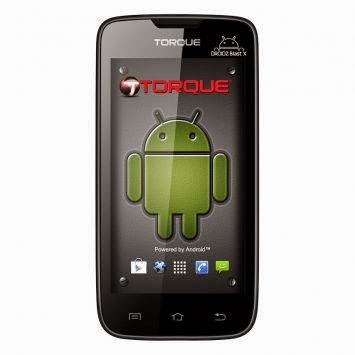
This tutorial is for Torque Droidz Blast. Not the Torque Droidz Blast X. You can check out the official picture for your reference.
Hard resetting / factory resetting your phone will solve the following issues:
1. If you forgot your pattern lock
2. If you forgot your gmail account
3. If you forgot your password
4. Apps that automatically force closing
5. Stuck in Torque Logo (sometimes does not work if the firmware is totally damage)
NOTE: Performing hard reset will erase your data.
To hard reset:
1. Turn off your phone
2. Press and Hold VOLUME UP + Power button simultaneously. You must Press the Power Button first before pressing the VOLUME UP and wait until you see a phone with exclamation mark.
3. Press Power Button or Volume up to activate Android System Recovery (I forgot the exact button to press, but its either of the two button)
4. Select wipe / factory reset, press Volume rocker to navigate and press the Power Button to confirm your selection.
5. Reboot your phone.
Note: If performing hard reset did not succeed, you need to wipe the cache first in the android system recovery before performing wipe / factory reset.
I hope this tutorial helps you.. If you have any question just drop a comment. If you have time please can you confirm the button to activate the Android System Recovery, so I can update the blog post. Thank you.
Read more »
Hard resetting / factory resetting your phone will solve the following issues:
1. If you forgot your pattern lock
2. If you forgot your gmail account
3. If you forgot your password
4. Apps that automatically force closing
5. Stuck in Torque Logo (sometimes does not work if the firmware is totally damage)
NOTE: Performing hard reset will erase your data.
To hard reset:
1. Turn off your phone
2. Press and Hold VOLUME UP + Power button simultaneously. You must Press the Power Button first before pressing the VOLUME UP and wait until you see a phone with exclamation mark.
3. Press Power Button or Volume up to activate Android System Recovery (I forgot the exact button to press, but its either of the two button)
4. Select wipe / factory reset, press Volume rocker to navigate and press the Power Button to confirm your selection.
5. Reboot your phone.
Note: If performing hard reset did not succeed, you need to wipe the cache first in the android system recovery before performing wipe / factory reset.
I hope this tutorial helps you.. If you have any question just drop a comment. If you have time please can you confirm the button to activate the Android System Recovery, so I can update the blog post. Thank you.

Hard Reset AT T Pure HTC Smartphone
How To Hard Reset AT&T Pure HTC Smartphone
What is Hard Reset ?
A hard reset is also called Factory reset. When you restore your Android device to state when it left the factory or first time the Smartphones or Tablets turns on . Hard Reset erase all user setting,contents (i.e games,contacts,messages,apps preference setting ,bookmarks,third party apps as well .) So if youre enough lucky then you can make backup of all your data before hard reset .In most cases user data lost. Different Android Devices have different method for Hard Reset.
When Hard Reset is Necessary for Smartphones or Tablets ?
1. Forgotten Pattern Lock on Android Tablets or Smartphones.
2.Too many pattern attempts / Reset user lock.
3. Tablets PC,Smartphones stuck on Gmail account.
4. Android Tablet PC stuck on Android logo.
5. Tablet Android or Smartphones hang on start-up / Multiple errors generating by OS.
6. Android market having problems or generating errors.
7.Upgrading to new Android version.
6. Android market having problems or generating errors.
7.Upgrading to new Android version.
Make sure to charge battery upto 60%.
 |
| AT&T Pure HTC Smartphone |
How to Soft Reset AT&T Pure HTC Smartphone.
Soft reset is good when your Android device is working slowly . Soft Reset shut down all running smartphone app,system files,programs. All unsaved work should be lost .
To perform soft reset , remove the back lower cover of htc smartphone pure , pull out stylus ,under stylus there should be red button. Keep pressing it with tip of stylus .Your smartphone restart and turn on.
How to Hard Reset AT&T Pure HTC Smartphone.
How to Hard Reset AT&T Pure HTC Smartphone.
- Turn off your AT&T Pure HTC smartphone.
- Press and hold both Volume UP(+) and Volume Down (-) buttons.
- Press Power button .
- When Android Exclamation marks comes out with instructions.
- Leave the all the buttons.
- Use volume + (UP) button to select the "Wipe data /Factory Reset" or clear storage.
- Confirm Using Power button (Power button = Enter )
- Select "Yes -- delete all user data "
- Allow some time for factory data reset.
You may also like to read Hard Reset method for other smartphones.
AT&T Aria HTC Smartphone Hard Reset.
AT&T Surround HTC Smartphone hard reset.
Verizon Thunderbolt HTC Smartphone hard reset
M4 HTC Smartphone Hard Reset
HTC One Mini smartphone Hard Reset.
Acer S120 Liquid Metal Hard Reset.
AT&T Surround HTC Smartphone hard reset.
Verizon Thunderbolt HTC Smartphone hard reset
M4 HTC Smartphone Hard Reset
HTC One Mini smartphone Hard Reset.
Acer S120 Liquid Metal Hard Reset.
Sunday, February 1, 2015
Hard Reset your Lenovo A690 and remove password pattern lock and gmail account
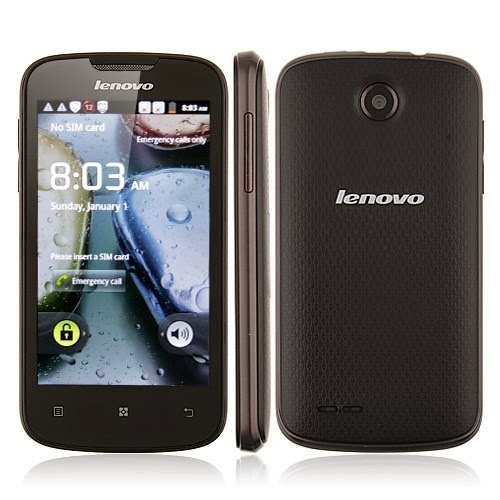
Lenovo phones are a bit rare in my area, but this Lenovo A690 came by with gmail account lock up. Ill be providing a tutorial to hard reset your Lenovo A690 this will be an easy one :D
Hard resetting / factory resetting your phone will solve the following issues:
1. If you forgot your pattern lock
2. If you forgot your gmail account
3. If you forgot your password
4. Apps that automatically force closing
5. Stuck in Lenovo Logo (sometimes does not work if the firmware is totally damage)
NOTE: Performing hard reset will erase your data.
To hard reset:
1. Turn off your phone.
2. Press and Hold VOLUME UP + Power button. Keep pressing the button until an Android robot appear in you screen. Press HOME capacitive key to activate Android System Recovery
3. Android System Recovery will appear.
4. Select wipe / factory reset, press Volume rocker to navigate and press the MENU Key (left capacitive key) to confirm your selection
5. Reboot your phone.
Note:
If performing hard reset did not succeed, you need to wipe the cache first in the android system recovery before performing wipe / factory reset.
I hope this tutorial helps you.. If you have any question just drop a
comment.
Read more »
Hard resetting / factory resetting your phone will solve the following issues:
1. If you forgot your pattern lock
2. If you forgot your gmail account
3. If you forgot your password
4. Apps that automatically force closing
5. Stuck in Lenovo Logo (sometimes does not work if the firmware is totally damage)
NOTE: Performing hard reset will erase your data.
To hard reset:
1. Turn off your phone.
2. Press and Hold VOLUME UP + Power button. Keep pressing the button until an Android robot appear in you screen. Press HOME capacitive key to activate Android System Recovery
3. Android System Recovery will appear.
4. Select wipe / factory reset, press Volume rocker to navigate and press the MENU Key (left capacitive key) to confirm your selection
5. Reboot your phone.
Note:
If performing hard reset did not succeed, you need to wipe the cache first in the android system recovery before performing wipe / factory reset.
I hope this tutorial helps you.. If you have any question just drop a
comment.
Wednesday, January 28, 2015
Hard Reset your Alcatel One Touch Tab 7 HD and remove pattern lock password and gmail account
An Alcatel Tablet came into my workplace. It is the Alcatel One Touch Tab 7 HD. A tutorial to hard reset your tablet is coming your way ;)

Hard resetting / factory resetting your phone will solve the following issues:
1. If you forgot your pattern lock
2. If you forgot your gmail account
3. If you forgot your password
4. Apps that automatically force closing
5. Stuck in Alcatel Logo (sometimes does not work if the firmware is totally damage)
NOTE: Performing hard reset will erase your data.
To hard reset:
1. Turn off your tablet.
2. Press and Hold VOLUME UP + VOLUME DOWN + Power button. Release the power Button only when the tablet power up. Just wait until the Android Robot appear.
3. To activate Android System Recovery, press VOLUME UP and POWER button simultaneously. Keep pressing until the Android System Recovery appear.
4. Select wipe / factory reset, press Volume rocker to navigate and press the Power Button to confirm your selection.
4. Reboot your tablet.
Note: If performing hard reset did not succeed, you need to wipe the cache first in the android system recovery before performing wipe / factory reset.
I hope this tutorial helps you.. If you have any question just drop a comment.
Read more »
Hard resetting / factory resetting your phone will solve the following issues:
1. If you forgot your pattern lock
2. If you forgot your gmail account
3. If you forgot your password
4. Apps that automatically force closing
5. Stuck in Alcatel Logo (sometimes does not work if the firmware is totally damage)
NOTE: Performing hard reset will erase your data.
To hard reset:
1. Turn off your tablet.
2. Press and Hold VOLUME UP + VOLUME DOWN + Power button. Release the power Button only when the tablet power up. Just wait until the Android Robot appear.
3. To activate Android System Recovery, press VOLUME UP and POWER button simultaneously. Keep pressing until the Android System Recovery appear.
4. Select wipe / factory reset, press Volume rocker to navigate and press the Power Button to confirm your selection.
4. Reboot your tablet.
Note: If performing hard reset did not succeed, you need to wipe the cache first in the android system recovery before performing wipe / factory reset.
I hope this tutorial helps you.. If you have any question just drop a comment.
Monday, January 26, 2015
Karbonn A1 Hard Reset Remove Pattern Lock Google Lock Force Close
Before you proceed flashing / hard resetting your phone / tablet make sure to back up your important files if possible. Because we care about your data.
In this tutorial I will gonna teach you how to hard reset your Karbonn A1. This can fix the following issues that you are experiencing in your phone:
Read more »
We also suggest that your battery should be atleast 50% or better to have it fully charge, lower than the said value may cause unwanted result, such as bricking your phone / tablet rendering it unuseable. This is very important in flashing your phone / tablet. Use original USB cable as possible.
Files that you downloaded should not be corrupted, if ever the file is corrupted you might brick your phone. Or the flashing will start.
Drivers are very important specially in Spreadtrum Chipset, having an Spreadtrum SPD6610 (non android devices) driver will not work in SPD6820 (android devices).
If you are using laptop to flash your phone, make your that it has enough charge. If your laptop shutdown when your flashing your phone/tablet, youll end up bricking your phone. Sometimes you can still recover your phone just flash it again and your phone will boot up again. But that is just a case to case basis, if your phone / tablet is deadboot (totally dead, erased all program in the chip) you cant recover it, you will need to seek professional help (technician).
In this tutorial I will gonna teach you how to hard reset your Karbonn A1. This can fix the following issues that you are experiencing in your phone:
1. Force Close Apps
2. If you forgot your Google Account
3. Hang in Logo
Ok lets do it. Just follow the procedure
1. Power off mobile
2.Now press Home+center+power Key altogether
3. After 10-15 sec Triangle symbol will be appear
4. then Press call button for recovery menu
5. Use volume buttons to scroll option
6. Now press center button to select option

Thats it. Your phone will be back in its original state.
1. Power off mobile
2.Now press Home+center+power Key altogether
3. After 10-15 sec Triangle symbol will be appear
4. then Press call button for recovery menu
5. Use volume buttons to scroll option
6. Now press center button to select option
Thats it. Your phone will be back in its original state.
I hope this tutorial help you with your problem.
If you have any tutorial or problems in your mobile phone I will be glad to help.
Thursday, January 22, 2015
Cherry MobileTitan Hard Reset Google Account Remove Pattern Lock Force Close
Before you proceed flashing / hard resetting your phone / tablet make sure to back up your important files if possible. Because we care about your data.
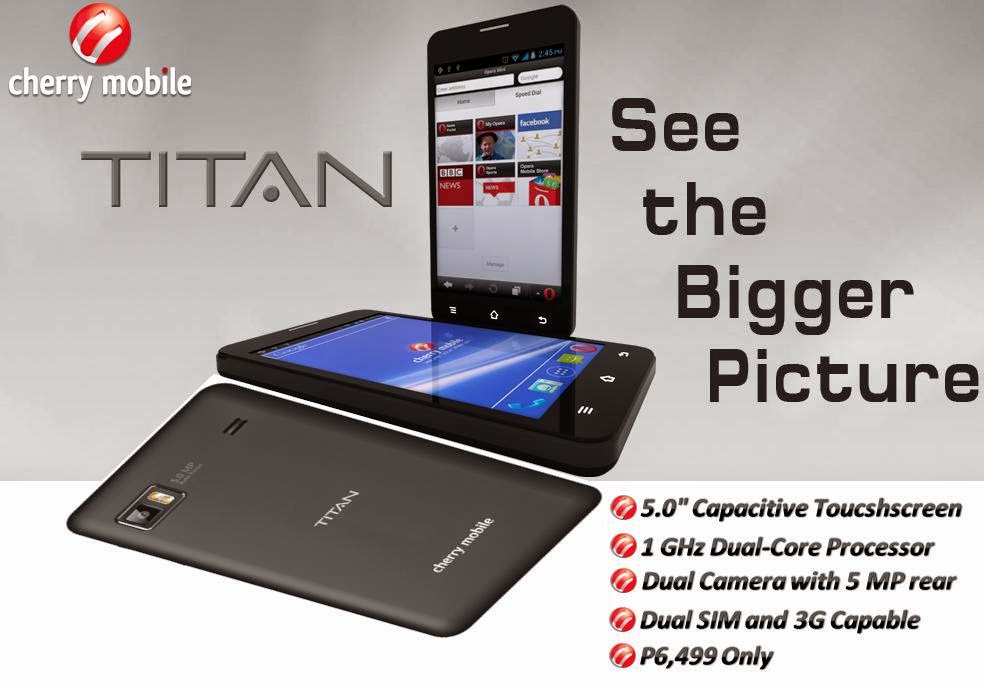
In this tutorial I will gonna teach you how to hard reset your Cherry Mobile Titan. This is not the Titan TV version, but you can also try this method. This can fix the following issues that you are experiencing in your phone"
Read more »
We also suggest that your battery should be atleast 50% or better to have it fully charge, lower than the said value may cause unwanted result, such as bricking your phone / tablet rendering it unuseable. This is very important in flashing your phone / tablet. Use original USB cable as possible.
Files that you downloaded should not be corrupted, if ever the file is corrupted you might brick your phone. Or the flashing will start.
Drivers are very important specially in Spreadtrum Chipset, having an Spreadtrum SPD6610 (non android devices) driver will not work in SPD6820 (android devices).
If you are using laptop to flash your phone, make your that it has enough charge. If your laptop shutdown when your flashing your phone/tablet, youll end up bricking your phone. Sometimes you can still recover your phone just flash it again and your phone will boot up again. But that is just a case to case basis, if your phone / tablet is deadboot (totally dead, erased all program in the chip) you cant recover it, you will need to seek professional help (technician).
In this tutorial I will gonna teach you how to hard reset your Cherry Mobile Titan. This is not the Titan TV version, but you can also try this method. This can fix the following issues that you are experiencing in your phone"
1. Force Close Apps
2. If you forgot your Google Account
3. Hang in Logo
3. Hang in Logo
4. Pattern Lock
Ok lets do it. Just follow the procedure
- Press Volume Up and Power Button Simultaneously (wait for about 3 seconds)
- An android with exclamation mark will appear
- Press Home Button (middle capacitive key)
- Select wipe data/factory reset (to select press option key, left capacitive key)
- Then Reboot
Thats it. Your phone will be back in its original state.
I hope this tutorial help you with your problem.
If you have any tutorial or problems in your mobile phone I will be glad to help.
Sunday, January 18, 2015
Hard Reset your SKK Phoenix and remove password pattern lock gmail account
An SKK tablet came into my workplace and made a tutorial on how to hard reset your SKK Phone+. This tablet has a MTK 6582 chipset, and I also made a back up of its ROM. I will upload it the ROM when Im done uploading with my pending uplaods. To hard reset your tablet check out the tutorial below.

Hard resetting / factory resetting your phone will solve the following issues:
1. If you forgot your pattern lock
2. If you forgot your gmail account
3. If you forgot your password
4. Apps that automatically force closing
5. Stuck in SKK Logo (sometimes does not work if the firmware is totally damage)
NOTE: Performing hard reset will erase your data.
To hard reset:
1. Turn off your tablet
2. Press and Hold first the POWER Button and then immediately Press and HOLD VOLUME DOWN, it will enter in factory mode
3. Factory Mode, select the chinese character with eMMC on it.
4. Wait for it to erase the data in your tablet, it will take about 3 to five minutes and It will automatically reboot.
5. If it did not automatically reboot, you can press the power button until your tablet power off.Note:
If performing hard reset did not succeed, you need to wipe the cache first in the android system recovery before performing wipe / factory reset.
I hope this tutorial helps you.. If you have any question just drop a comment.
Read more »
Hard resetting / factory resetting your phone will solve the following issues:
1. If you forgot your pattern lock
2. If you forgot your gmail account
3. If you forgot your password
4. Apps that automatically force closing
5. Stuck in SKK Logo (sometimes does not work if the firmware is totally damage)
NOTE: Performing hard reset will erase your data.
To hard reset:
1. Turn off your tablet
2. Press and Hold first the POWER Button and then immediately Press and HOLD VOLUME DOWN, it will enter in factory mode
3. Factory Mode, select the chinese character with eMMC on it.
4. Wait for it to erase the data in your tablet, it will take about 3 to five minutes and It will automatically reboot.
5. If it did not automatically reboot, you can press the power button until your tablet power off.Note:
If performing hard reset did not succeed, you need to wipe the cache first in the android system recovery before performing wipe / factory reset.
I hope this tutorial helps you.. If you have any question just drop a comment.
Subscribe to:
Posts (Atom)