Wednesday, March 11, 2015
Crowd Sourcing with Google Forms and Fusion Tables
Crowd sourcing has been growing substantially in popularity. More and more businesses and individuals are interested in gathering data from the general public for real-time data analysis and visualization. The concept is being adopted in several fields, including journalism, public health and safety, and business development. During this election year, for example, a journalist might be interested in learning what candidate his or her readers support, and the reasons why they support this candidate.
Google Forms, Fusion Tables, and Apps Script make both data collection and analysis super simple! Using Google Forms, a journalist can quickly create an HTML form for readers to submit their opinions and feedback. Fusion Tables make data analysis easy with several cool data visualization options. Apps Script acts as the glue between Google Forms and Fusion Tables, enabling the Form to send data directly to Fusion Tables.
Let’s take a look at how our journalist friend would use all these tools to collect her reader’s candidate preferences.
Google Forms
Google Forms provides a simple UI tool to develop forms perfect for collecting data from readers. Here’s an example of a simple form the journalist can create to get information from her readers:

Once the form has been created, it can be embedded directly into the journalist’s website or blog using the embeddable HTML code provided by Google Forms.
Google Fusion Tables
Google Fusion Tables makes data analysis simple with its visualization capabilities. Using Fusion Tables, the journalist can create maps and charts of the collected data with just a few clicks of the mouse!
Using some fake data as an example, here’s a pie chart that can be created using Fusion Tables to show the the results of the survey:

With Fusion Tables, it’s also easy to filter data and create a pie chart visualization showing why people like Mitt Romney:

These visualizations can also be embedded in the journalist’s website or blog, as Fusion Tables provides embeddable HTML code for all its visualizations. Now, any time someone visits the webpage with the embedded visualization, they will see the current poll result!
Apps Script
Finally, Apps Script acts as the glue between the Google Form and the Fusion Table, since there is currently no direct way to send Google Form submissions to a Fusion Table. During a hack event last year, I took some time to write an Apps Script script that submits the form data to Fusion Tables. The script uses the onFormSubmit Apps Script functionality as described in this blog post. The Fusion Tables code is based on the code described in this blog post.
To learn how to set up your own Google Form to collect data and save that data in a Fusion Table, please see these instructions.
 | Kathryn Hurley profile Kathryn is a Developer Programs Engineer for Fusion Tables at Google. In this role, she helps spread the word about Fusion Tables by presenting at conferences and developer events. Kathryn received an MS in Web Science from the University of San Francisco. Prior work experience includes database management, web production, and research in mobile and peer-to-peer computing. |

How to integrate with Google Apps and get listed on Google Apps Marketplace
If you already have a great web app or even just an idea for one and would like to learn more about integration with Google Apps, join us for a webinar next Wednesday. Well review the Marketplace and Google Apps APIs and answer technical and policy questions from attendees.
Integrate with Google Apps and the Google Apps Marketplace
Wednesday, March 17, 2010
9:00 a.m. PDT
This webinar will include a question and answer session. Post and vote for questions ahead of time and register for the webinar here. We hope youll join us for this informative online event.
UPDATE @ 5:30pm PST: Weve corrected the registration link.
Monday, March 2, 2015
Visions 2020 Transforming Education and Training WOW
"Visioning exercise about the future of e-learning, primarily in the area of K - 12. Wide range of contributors from George Lucas Educational Foundation, Harvard, UC Berkeley, HP Labs, Maxis, and an introduction by Bill Gates."
"The way we (USA) organize schools and provide instruction is essentially the same as it was when our Founding Fathers went to school. Many education and training institutions have simply applied technology on top of traditional teaching practices, rather than reinventing themselves around the possibilities new technologies present.
Even more powerful technologies are under development by U.S. businesses, universities, and government that could be harnessed to transform education and training in ways previously unimaginable. Rapid advancements in the years ahead could enable new learning environments using simulation, visualization, virtual worlds, personal intelligent tutors, learning and collaboration unbounded by geography, vast digital libraries and museums, and more. The technologies that are coming could create compelling learning opportunities that help students of all ages reach their potential through individualized learning and progression, provide knowledge and training when and where they are needed, while boosting the productivity of learning and lowering its cost..."
Yes, USA is certainly preparing for an educational world beyond our imagination. Lets spend some time with those collection of articles (PDF above) and please visit the site, as it will be real eye opener to the potential future. We can learn so much from these articles and of course all the reports found on the site. It is certainly the most interesting site I have visited this year in terms of education, technology and e-learning .
Colorful Borders Frames Set and some Freebies!


As a thank you to all of my followers for all of your sweet comments, I decided to post some of
these frames for free! Click each of the pictures below to download the black frames for free!

These frames are free for your use (in your personal and commercial items) as long as you give credit to me for creating it! You can see the details of the Term of Use on TPT.
To save the files, just click the image to get to the higher quality picture, then right click (or Mac: Ctrl + Click) to save the image onto your computer!


Im linking this post up with Manic Monday!

Saturday, February 28, 2015
Cloud Types Interactive E Books and Games for Smartboard Freebie and a Bundle!
First things first, let me start with the freebie: the Introduction to Clouds E-Book. This Smart Notebook file introduces the three main cloud types (cirrus, cumulus, and stratus) and has some really fun interactive components in it! I used this book at the beginning of my unit and the students LOVED it!

Next, I did the interactive e-book on Cirrus Clouds with my class:
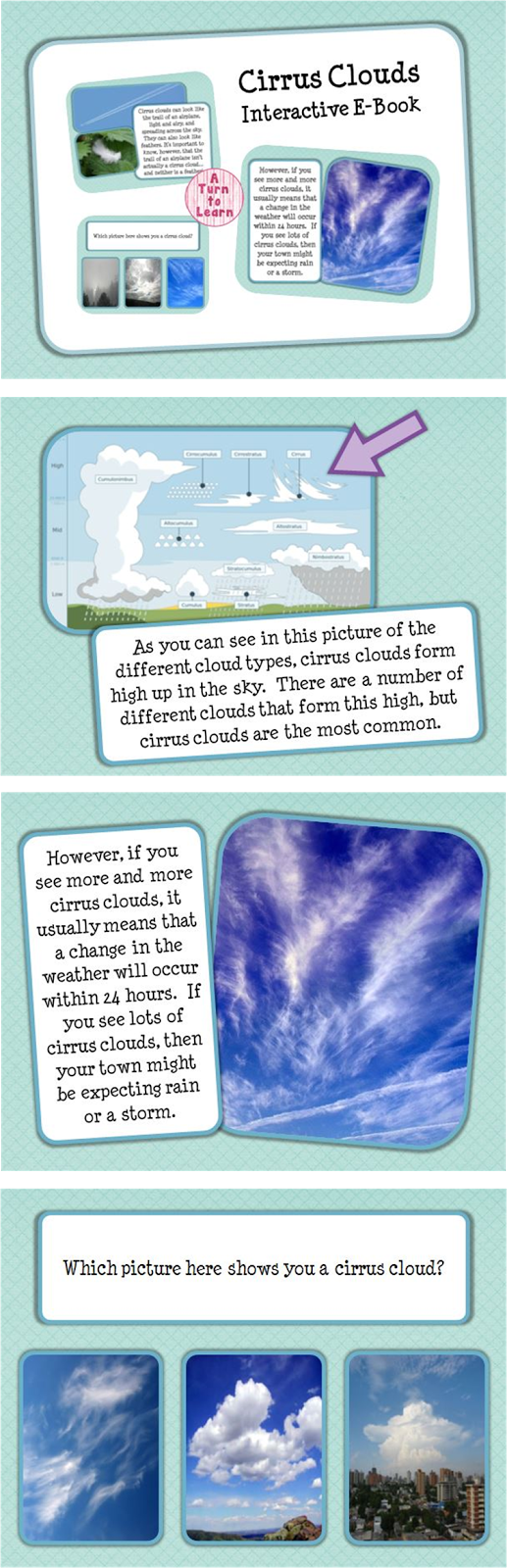
Then, I moved onto the book for cumulus clouds:

After that, I taught the students about stratus clouds:
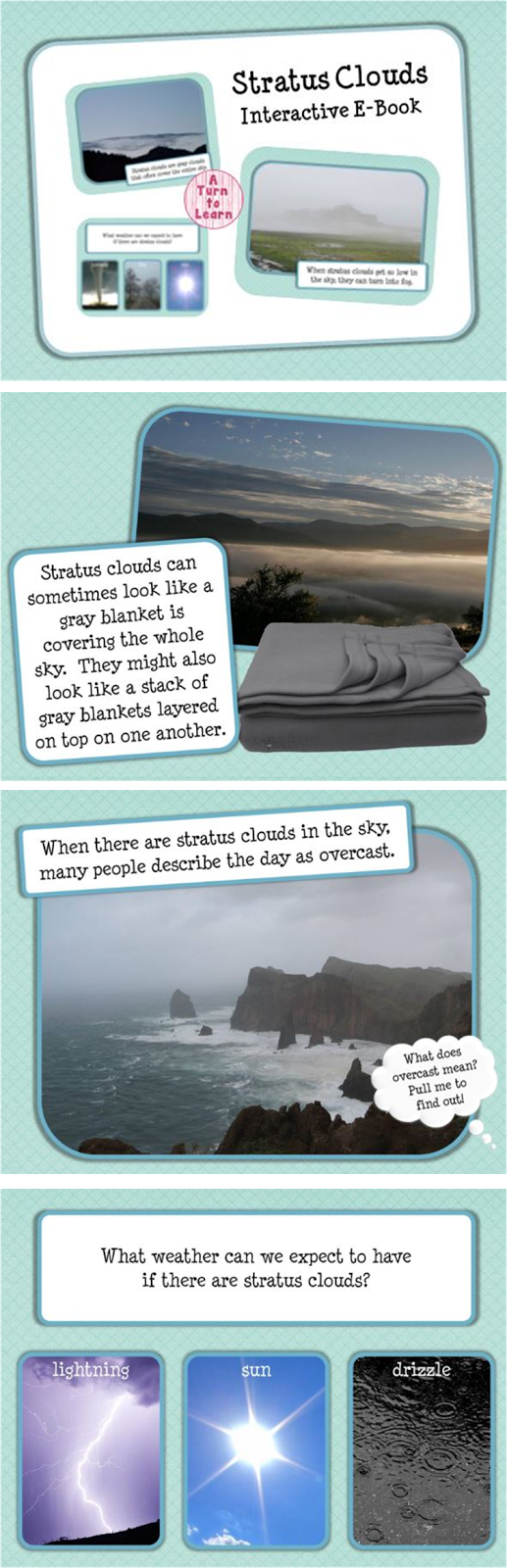
Then I moved onto cumulonimbus clouds (which is quite possible their favorite!)

Each of those pictures links you to the book on TPT. Youll save 20% if you buy the bundle!

ICE Breakers A Fish That Barks and The Moonwalking Bear!
When the cat reaches the fishbowl, then pause the video and ask your Students/Participants (S/P) to figure out what happens next. Most likely you will get S/Ps attention, and stimulate their minds to think creatively about what happens next in a competitive but enjoyable way. If you break S/P up into groups, and then give each group say 2 minutes to come up with their answer, you will get collaborative fun.
WARM UP S/P FIRST, OR THEY WILL ________!
Using short videos found on the Internet as icebreakers to stimulate thinking and help people to get familiar with each other in new situations and environments is today easier than ever, because of the millions (I mean billions!) of videos freely available on sites like YouTube.
More importantly, before you engage your S/P to learn and interact with the subject matter in a face-to-face session (or online session), it is important to warm them up first, or awaken them from their sleep (or whatever they are doing/thinking). It is obvious in sports that we need to warm our relevant muscles before playing a particular activity; otherwise the likelihood of getting injuries increases significantly. Though, strangely enough not all lecturers/educators/facilitators apply this common sense idea to learning. Lets not forget that our Brain is also a muscle that needs to warm up too, or it would probably fall asleep (not literally!), or be in another dimension beyond the subject paradigm.
AWARENESS TEST
IMPORTANCE OF LANGUAGE SKILLS
These are just four examples of using short videos (less than 5 minutes) found on the Internet to stimulate S/P to think, and break down communication barriers. The best part is that there are thousands, if not millions of freely available videos ready to be plucked from video sharing sites.
If you have any experiences, or discovered some mind stimulating short videos to share, please share it in the comments section (That would be great!).
HOW TO DOWNLOAD VIDEOS FROM YOUTUBE?
I knew that question was coming (obviously!), and here is the answer (link below):
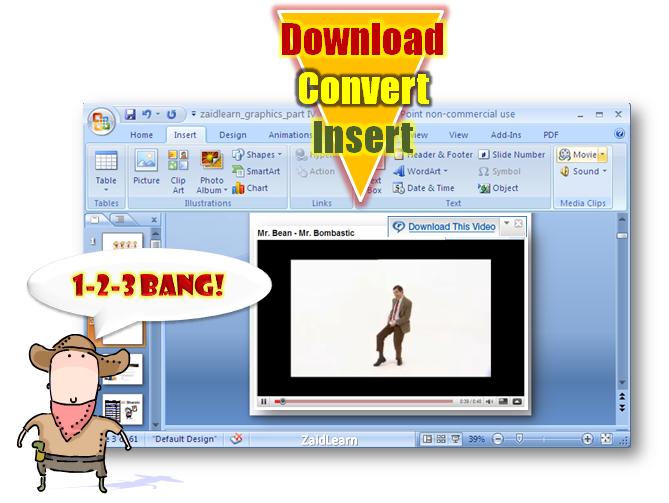
What about downloading and copyright? I discuss this issue a bit here.
It is amazing how fun a learning session can become by taking a few risks in the way we facilitate learning :)
Wednesday, February 25, 2015
Corporate Learning Trends and Innovations Free Online Conference!
- Corporate Learning: Trends and Innovations
 WHAT?
WHAT?
Corporate Learning: Trends and Innovations is a FREE online conference, running from November 15-20, 2007. World renowned speakers will present live. It will provide a great opportunity for attendees (Corporate leaders, directors, CLOs, trainers, etc) to engage in dialog and discuss the directions and innovations in corporate learning through online forums - forming connections and exchanging ideas and visions on corporate learning. In addition, it will provide many opportunities for active participation for attendees who wish. All sessions will be recorded and available within a few minutes after the session for people who cannot attend at that time ...more
MASTERMIND?
George Siemens (hosted by Complexive Systems Inc., and supported by Duke Corporate Education, TechEmpower, Q2 Learning, and Elluminate)
JUICE?
World renowned speakers participating in this conference (Speakers List!), include Tony Karrer, Jay Cross, Gaurav Rastogi and Jai Ganesh and George Siemens. Also, it wouldnt surprise me if Stephen Downes drops by to participate or speak. In short, this free online conference provides us a wonderful free opportunity to learn, discuss and engage with great learning minds. So, hopefully we will not only register, but also actively participate to stimulate and inspire our own evolving learning minds. Even if you should discover this online conference after November 20th, it still has tremendous value, as you will be able to access and view all the recorded sessions.
Have fun learning and engaging with great learning minds, during and after the Corporate Learning: Trends and Innovations online conference :)
Wednesday, February 4, 2015
Hard Reset your Torque Droidz Blast and remove password pattern lock and gmail account
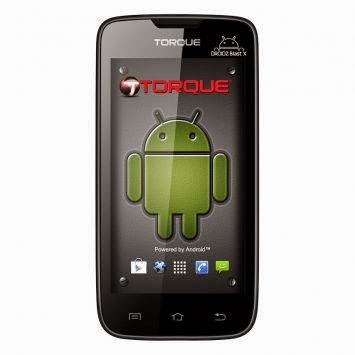
Hard resetting / factory resetting your phone will solve the following issues:
1. If you forgot your pattern lock
2. If you forgot your gmail account
3. If you forgot your password
4. Apps that automatically force closing
5. Stuck in Torque Logo (sometimes does not work if the firmware is totally damage)
NOTE: Performing hard reset will erase your data.
To hard reset:
1. Turn off your phone
2. Press and Hold VOLUME UP + Power button simultaneously. You must Press the Power Button first before pressing the VOLUME UP and wait until you see a phone with exclamation mark.
3. Press Power Button or Volume up to activate Android System Recovery (I forgot the exact button to press, but its either of the two button)
4. Select wipe / factory reset, press Volume rocker to navigate and press the Power Button to confirm your selection.
5. Reboot your phone.
Note: If performing hard reset did not succeed, you need to wipe the cache first in the android system recovery before performing wipe / factory reset.
I hope this tutorial helps you.. If you have any question just drop a comment. If you have time please can you confirm the button to activate the Android System Recovery, so I can update the blog post. Thank you.
Sunday, February 1, 2015
Hard Reset your Lenovo A690 and remove password pattern lock and gmail account
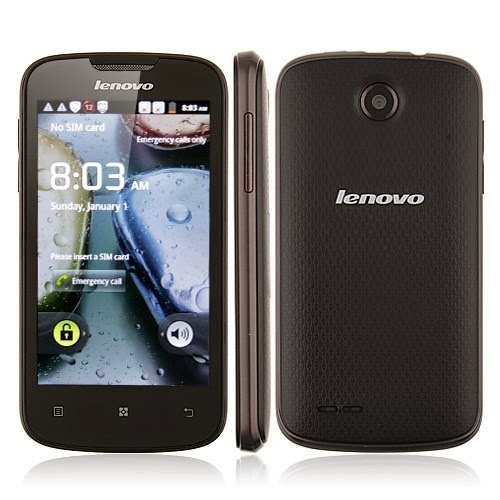
Hard resetting / factory resetting your phone will solve the following issues:
1. If you forgot your pattern lock
2. If you forgot your gmail account
3. If you forgot your password
4. Apps that automatically force closing
5. Stuck in Lenovo Logo (sometimes does not work if the firmware is totally damage)
NOTE: Performing hard reset will erase your data.
To hard reset:
1. Turn off your phone.
2. Press and Hold VOLUME UP + Power button. Keep pressing the button until an Android robot appear in you screen. Press HOME capacitive key to activate Android System Recovery
3. Android System Recovery will appear.
4. Select wipe / factory reset, press Volume rocker to navigate and press the MENU Key (left capacitive key) to confirm your selection
5. Reboot your phone.
Note:
If performing hard reset did not succeed, you need to wipe the cache first in the android system recovery before performing wipe / factory reset.
I hope this tutorial helps you.. If you have any question just drop a
comment.
Thursday, January 29, 2015
Flatland and my adventures in Stanfords libraries
A few months ago, in preparation for a trip up to Sonoma, Molly and I were at the Stanford Library to pick out a few books. Susans house in Healdsburg is one of the few places I actually take the time to read, as opposed to listening to audiobooks; after a day of biking, wine tasting and swimming, there is nothing better than relaxing by the pool with a good story. Except the massages. But thats a different story.
 |
| The pool |


 |
| Molly captured on camera the split second when I totally, utterly cracked. |
How the hell does this crap get published? Why did Stanford buy it? WHY?For each page of Abbott’s novel I have traced, by hand, a representation of each letter’s occurrence across every page of text. The generated result is a series of superimposed seismographic images which reduce the text in question into a two-dimensional schematic reminiscent of EKG results or stock reports.
I left the library that day without a book and quite shaken by the experience. Fortunately, time heals all wounds. Time, and a nice bottle of wine.

Wednesday, January 28, 2015
Hard Reset your Alcatel One Touch Tab 7 HD and remove pattern lock password and gmail account

Hard resetting / factory resetting your phone will solve the following issues:
1. If you forgot your pattern lock
2. If you forgot your gmail account
3. If you forgot your password
4. Apps that automatically force closing
5. Stuck in Alcatel Logo (sometimes does not work if the firmware is totally damage)
NOTE: Performing hard reset will erase your data.
To hard reset:
1. Turn off your tablet.
2. Press and Hold VOLUME UP + VOLUME DOWN + Power button. Release the power Button only when the tablet power up. Just wait until the Android Robot appear.
3. To activate Android System Recovery, press VOLUME UP and POWER button simultaneously. Keep pressing until the Android System Recovery appear.
4. Select wipe / factory reset, press Volume rocker to navigate and press the Power Button to confirm your selection.
4. Reboot your tablet.
Note: If performing hard reset did not succeed, you need to wipe the cache first in the android system recovery before performing wipe / factory reset.
I hope this tutorial helps you.. If you have any question just drop a comment.
PowerPoint 2010 and 2013 Whats added and what got removed
What new features, functionality has been added in PowerPoint 2013?
Eye dropper: Eyedropper the color picker tool helps you copy the shape color and apply to any other shape.

PowerPoint to MP4: PowerPoint 2013 allows you to convert PowerPoint presentations in MP4 video format.
Search and insert images and videos from within PowerPoint: PowerPoint 2013 has inbuilt image and video search engine which lets you search images from Bing, Flickr and videos from Bing and YouTube.
Theme family and variants: PowerPoint 2013 has more themes and flexibility to choose and edit variants.
Presenter View: Changes to presenter view like automatic selection of monitor, jump to slides and zoom in.
Share and publish online
Head here for more details on these and other features added to PowerPoint 2013.
What has been removed or changed in PowerPoint 2013 from earlier versions?
PowerPoint viewer: PowerPoint viewer is a small free exe that lets you view presentations created in PowerPoint 97 and later versions without the need of licensed version of PowerPoint. This has been in use to view PowerPoint presentations on machines that doesnt have purchased versions of MS PowerPoint software.
Now question arises how to view PowerPoint presentations created in 2013 without PowerPoint viewer if you dont have licensed copy of PowerPoint 2013? If you are not worried about animations and media, use Google docs or Slideshare, Scribd. If you are worried about animations and media too, try authorSTREAM or Microsoft web apps.
Save PPT as HTML: This feature existed so that people can save a PPT as HTML and use that HTML on web to show case the presentation. This feature became obsolete with online presentation sharing websites like Slideshare and authorSTREAM providing embeds that could play your presentations on blogs, website and even on Social media platforms like Facebook, Twitter, LinkedIn.
Media formats: Video (WMV) and Audio (WMA) formats have been default video and audio formats for PowerPoint till 2010. Now default media formats are H.264 for video and AAC for audio.
Equation Editor: Equation Editor the formula editor that that allows you to insert math and science equations in a slide is no longer available in 2013.
Microsoft Clip Organizer: The Clip Organizer feature has been replaced by the Insert Media dialog box. Insert Media feature lets you search and insert content from the Office.com Clip Art collection and other online sources, such as Bing Image/Video search, Flickr, and your SkyDrive or Facebook page.
Monday, January 19, 2015
AS3 Dragging and Dropping Tutorial AS3 startDrag and AS3 stopDrag
as3-drag-and-drop.fla - Flash CS4/CS5
as3-drag-and-drop.fla - Flash CS3
In this tutorial, were going to learn how to create simple AS3 drag and drop functionality using the AS3 startDrag() and AS3 stopDrag() methods. The exercise file can be downloaded from the link above, and the AS3 dragging and dropping code is provided below along with comments that explain the code.
Here is the ActionScript 3 code:
circle_mc.addEventListener(MouseEvent.MOUSE_DOWN, drag);
square_mc.addEventListener(MouseEvent.MOUSE_DOWN, drag);
stage.addEventListener(MouseEvent.MOUSE_UP, drop);

function drag(e:MouseEvent):void
{
     e.target.startDrag(false, new Rectangle(75,50,350,250));
}

function drop(e:MouseEvent):void
{
     stopDrag();
}
Heres the same code for ActionScript 3 dragging and dropping, but with comments:
/*Use the AS3 startDrag() method of the MovieClip class in
order to let the user drag MovieClip instances all over the stage.

Example:
myMovieClip.startDrag();

You can call this method whenever the user presses on
a MovieClip instance, so that the user can start
dragging it once he or she presses on the MovieClip.
The event for that would be MouseEvent.MOUSE_DOWN.

To stop the user from being able to drag the MovieClip
instance, you use the AS3 stopDrag() method. You can call
this whenever the user releases the mouse button so that
the object being dragged will be released the same time
the mouse button is released. The event for that would
be MouseEvent.MOUSE_UP.

To summarize:
Call the AS3 startDrag() method whenever MOUSE_DOWN happens, and call
the AS3 stopDrag() method whenever MOUSE_UP happens. In other words,
enable dragging while the user is pressing on the movie
clip, and disable dragging when the user releases it. */

/*Add the MouseEvent.MOUSE_DOWN listeners to the MovieClip
instances that youd like the user to be able to drag.*/
circle_mc.addEventListener(MouseEvent.MOUSE_DOWN, drag);
square_mc.addEventListener(MouseEvent.MOUSE_DOWN, drag);

/*Add the MouseEvent.MOUSE_UP listener to the stage.*/
stage.addEventListener(MouseEvent.MOUSE_UP, drop);

/*This is the event listener function for the MOUSE_DOWN
event, which enables dragging.*/
function drag(e:MouseEvent):void
{
     e.target.startDrag(false, new Rectangle(75,50,350,250));
     /*This will enable dragging for whichever object is
     currently being pressed.

     It accepts 2 parameters (these are optional):

     1. lockCenter:Boolean - true or false
     If set to true, the objects registration point locks
     to the mouse pointer. If false, whatever part of the
     object that was clicked on locks to the pointer.

     2. Bounds:Rectangle
     Lets you create a rectangular boundary that restricts where
     the object can be dragged. You create a rectangle
     object that will serve as the boundary:

     new Rectangle (x,y,width,height)

     This rectangle will not be seen. The rectangle shape
     that you see on the stage of this exercise file is
     just a drawing to help illustrate where the
     boundary is. Also, its not the shape itself that
     stays inside the boundary, but the MovieClip instances
     registration point. So parts of the MovieClip instance
     can still move beyond the boundary.*/
}

/*This is the event listener function for the MOUSE_UP
event, which disables dragging.*/
function drop(e:MouseEvent):void
{
     stopDrag();
     /*Simply call the stopDrag() method, and whichever
     object is currently being dragged will then be
     dropped.*/
}

/*Why add the MOUSE_UP event listener to the stage instead
of to the MovieClip instances?

As long as the mouse pointer is within the stage, then
we can be sure that the MOUSE_UP event will be detected.
The problem with adding the MOUSE_UP event listener
to any of the MovieClip instances is that sometimes,
the MovieClip instance gets left behind when the user
drags too fast. If the user releases the mouse button
and the mouse pointer is NOT on the actual MovieClip
instance, then the MOUSE_UP event wont get dispatched.
This will cause the MovieClip instance to get stuck
to the mouse pointer even though the mouse button has
already been released. So it would be better to add the
event listener to the stage instead.*/Sunday, January 18, 2015
Hard Reset your SKK Phoenix and remove password pattern lock gmail account
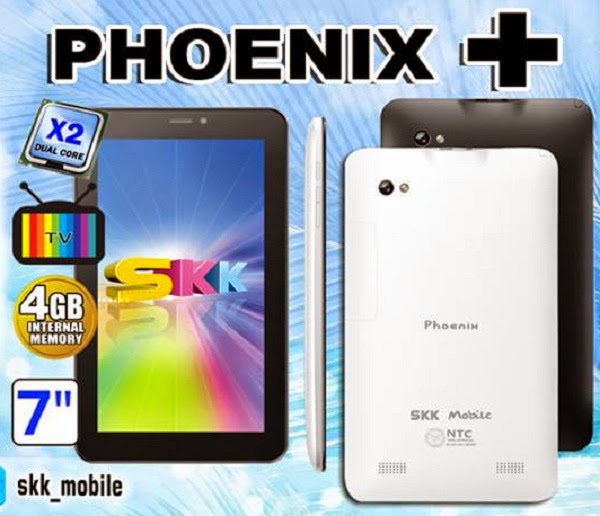
Hard resetting / factory resetting your phone will solve the following issues:
1. If you forgot your pattern lock
2. If you forgot your gmail account
3. If you forgot your password
4. Apps that automatically force closing
5. Stuck in SKK Logo (sometimes does not work if the firmware is totally damage)
NOTE: Performing hard reset will erase your data.
To hard reset:
1. Turn off your tablet
2. Press and Hold first the POWER Button and then immediately Press and HOLD VOLUME DOWN, it will enter in factory mode
3. Factory Mode, select the chinese character with eMMC on it.
4. Wait for it to erase the data in your tablet, it will take about 3 to five minutes and It will automatically reboot.
5. If it did not automatically reboot, you can press the power button until your tablet power off.Note:
If performing hard reset did not succeed, you need to wipe the cache first in the android system recovery before performing wipe / factory reset.
I hope this tutorial helps you.. If you have any question just drop a comment.
Wednesday, January 14, 2015
Play all kinds of Audio and Video Files!

Almost all of you sometimes face problem with playing audio or video files. Specially video files with extension like .mkv may bother you. Today I am gonna show you the way to avoid such kind of problems.
Stay with Marks PC Solution to get more interesting IT topics!
Tuesday, January 13, 2015
Networking Ubuntu 9 10 and Windows XP
To network Ubuntu 9.10 with Windows XP, you need to perform two procedures:
- On your XP computer, use the Set Up Sharing on Windows XP procedure below to share your XP Shared Documents folder with all network users.
- On your Ubuntu computer, use the Set Up Sharing on Ubuntu procedure below to create a share point, which is a desktop icon through which you have read and write access to the Shared Documents folder on your XP computer.
To set up Windows XP to share documents with Ubuntu through your wired, ethernet home network, do the following:
- On your Windows XP computer, click My Computer to display its window.
- Right-click Shared Documents, click Properties to display its window, and then click Sharing to display its page.
- In the "Network sharing and security" frame:
- Select Share this folder on the network.
- Write down the Share name, which is "SharedDocs" in this example. You will need the Share name when you perform the Set Up Sharing on Ubuntu procedure below.
- Select Allow network users to change my files.
- Click Apply to set folder permissions, and then click OK to close the window.
- Click Start, click Settings, and then click Control Panel to display it.
- Double-click System to display its window, and then click Computer Name to display its page.
- Write down the contents of the Full-computer-name field, which is "alpha" in this example. You will need the Full computer name when you perform the Set Up Sharing on Ubuntu procedure below.
To set up Ubuntu to share documents with Windows XP through your home network, do the following:
- On your Ubuntu computer, click Applications, select Accessories, click Terminal to display its window, and then do the following:
- Type sudo aptitude install smbfs, press Enter, type your password, press Enter again, follow the prompts, and then to install the smbfs packages, which you need for sharing files on the network.
- Type sudo mkdir /media/ubuntusharename, and then press Enter to name the share icon that will be on the Ubuntu desktop. Use a meaningful name for the ubuntusharename. This example uses "betashare" because the Ubuntu computer name is beta.
- Type sudo nano /etc/nsswitch.conf, and then press Enter to display the nsswitch configuration file through the nano editor.
- On the Hosts line, use the arrow keys to move your cursor to the "d" in dns on the hosts line, type wins and a space immediately before dns so that the hosts line is
hosts: files mdns4_minimal [NOTFOUND=return] wins dns mdns4. - Press Ctrl+X, type y, and then press Enter to save your edits and close the nano editor.
- Type sudo aptitude install winbind, and then press Enter to install windbind.
- Close the terminal window, and then turn off your Ubuntu computer completely.
- Turn your Ubuntu computer back on, click Applications, select Accessories, click Terminal to display its window, and then do the following:
- Type sudo cp /etc/fstab /etc/fstab_old, and then press Enter to back up your fstab file. Do not skip this step because fstab is an important system file. In case you need to recover fstab, use the following command: sudo mv /etc/fstab_old /etc/fstab.
- Type sudo nano /root/.smbcredentials, and then press Enter to display your credentials file, which might be empty.
- Add two lines to your credentials file:
username=winusername
password=winpassword
Replace winusername with your user name on your Windows XP computer. Replace winpassword with your Windows XP password. - Press Ctrl+X, type y, and then press Enter to save your edits and close the nano editor.
- Type sudo chmod 700 /root/.smbcredentials, and then press Enter so that only root can access your credentials file.
- Type sudo nano /etc/fstab, and then press Enter to display your fstab file. At the bottom of the file, add the following line:
//wincomputername/winsharename /media/ubuntusharename cifs guest,rw,iocharset=utf8,file_mode=0777 0 0
Replace wincomputername with your Windows XP Full computer name, which is "alpha" in the Set Up Sharing on Windows XP procedure above. Replace winsharename with your Windows XP Share name, which is "SharedDocs" in the Set Up Sharing on Windows XP procedure above. Replace ubuntusharename with your Ubuntu share name, which is "betashare" in this example. Therefore, this line on the example Ubuntu computer is:
//alpha/SharedDocs /media/betashare cifs guest,rw,iocharset=utf8,file_mode=0777 0 0 - Press Ctrl+X, type y, and then press Enter to save your edits and close the nano editor.
- Type sudo mount -a, and then press Enter to display your Ubuntu-share icon on your Ubuntu desktop.
- Close the terminal window, and then double-click your Ubuntu-share icon to open it. It should contain the same folders and files as the Shared Documents folder on your Windows XP computer.