Wednesday, March 11, 2015
4 ways to do Mail Merge using Google Apps Script
Update (August 2014): Try the Yet Another Mail Merge add-on for Google Sheets.
Editor’s Note: This blog post is co-authored by James, Steve and Romain who are Google Apps Script top contributors. -- Ryan Boyd
The Google Apps Script team is on a roll and has implemented a ton of new features in the last few months. Some of us “Top Contributors” thought it will be a useful exercise to revisit the Mail Merge use case and discuss various ways in which we can do Mail Merge using Apps Script. Below are several techniques that tap into the power of Google Apps Script by utilizing Gmail, Documents and Sites to give your mailings some zing. Mail Merge is easy and here is how it can be done.
1. Simple Mail Merge using a Spreadsheet
The Simple Mail Merge tutorial shows an easy way to collect information from people in a Spreadsheet using Google Forms then generate and distribute personalized emails. In this tutorial we learn about using “keys,” like ${"First Name"}, in a template text document that is replaced by values from the spreadsheet. This Mail Merge uses HTML saved in the “template” cell of the spreadsheet as the content source.
2. Mail Merge using Gmail and Spreadsheet Services
The Gmail Service is now available in Google Apps Script, allowing you to create your template in Gmail where it is saved as a draft. This gives us the advantage of making Mail Merge more friendly to the typical user who may not know or care much about learning to write HTML for their template. The mail merge script will replace the draft and template keys with names and other information from the spreadsheet and automatically send the email.
To use this mail merge, create a new spreadsheet, and click on Tools > Script Gallery. Search for “Yet another Mail Merge” and you will be able to locate the script. Then, click Install. You’ll get two authorization dialogs, click OK through them. Add your contact list to the spreadsheet, with a header for each column. Then compose a new mail in Gmail. Follow this syntax for the “keys” in your template: $%column header% (see above). Click Save now to save your draft. Go back to your spreadsheet and click on the menu Mail Merge. A dialog pops up. Select your draft to start sending your emails.
You can add CCs, include attachments and format your text just as you would any email. People enjoy “Inserting” images in the body of their emails, so we made sure to keep this feature in our updated mail merge. To automate this process we will use a new advanced parameter of the method sendEmail, inlineImages. When the script runs it looks in the email template for images and make sure they appear as inline images and not as attachments. Now your emails will look just as you intended and the whole process of mail merge got a whole lot simpler.
3. Mail Merge using Document Forms
The next Mail Merge will use a template that is written in a Google Document and sent as an attachment. Monthly reports, vacation requests and other business forms can use this technique. Even very complex documents like a newsletter or brochure can utilize the automation of Google Apps Script to add the personal touch of having your patron’s name appear as a salutation.
Like in the Mail Merge for Gmail, the Google Docs template will use “keys” as placeholders for names, addresses or any other information that needs to be merged. Google Apps Script can add dynamic elements as well. For example you may want to include a current stock quote using the Financial Service, a chart from the Charts Service, or a meeting agenda automatically fetched for you by the Calendar Service.
As the code sample below demonstrates, the Google Apps Script gets the document template, copies it in a new temporary document, opens the temp document, replaces the key placeholders with the form values, converts it to PDF format, composes the email, sends the email with the attached PDF and deletes the temp document.
Here is a code snippet example to get you started. To use this mail merge, create a new spreadsheet, and click on Tools > Script Gallery. Search for “Employee of the Week Award” and you will be able to locate the script.
// Global variables
docTemplate = “enter document ID here”;
docName = “enter document name here”;

function sendDocument() {
// Full name and email address values come from the spreadsheet form
   var full_name = from-spreadsheet-form
   var email_address = from-spreadsheet-form
// Get document template, copy it as a new temp doc, and save the Doc’s id
   var copyId   = DocsList.getFileById(docTemplate)
                  .makeCopy(docName+ for +full_name)
                  .getId();
   var copyDoc  = DocumentApp.openById(copyId);
   var copyBody = copyDoc.getActiveSection();
// Replace place holder keys,
   copyBody.replaceText(keyFullName, full_name);
   var todaysDate =  Utilities.formatDate(new Date(), "GMT", "MM/dd/yyyy");
   copyBody.replaceText(keyTodaysDate, todaysDate);
// Save and close the temporary document
   copyDoc.saveAndClose();
// Convert temporary document to PDF by using the getAs blob conversion
   var pdf = DocsList.getFileById(copyId).getAs("application/pdf");
// Attach PDF and send the email
   MailApp.sendEmail(email_address, subject, body, {htmlBody: body, attachments: pdf});
// Delete temp file
   DocsList.getFileById(copyId).setTrashed(true);
}
4. Mail Merge using Sites and Spreadsheet Services
For the last example let’s assume you have a great Google Site where you create new letters for your followers. However, you have had some feedback suggest that while many users don’t mind visiting your site, some would prefer to have the newsletter emailed to them. Normally this would require copying and pasting into an email or doc. Why not simply automate this with Google Apps Script?
The body section of a site, the part you edit, can be captured as HTML by the Sites Service and placed in the body of an email. Because the return value is HTML, the pictures and text formatting come through in the email.
Here is a simple example for you to try out:
function emailSiteBody() {
 var site = SitesApp.getPageByUrl(YourPageURL);
 var body = site.getHtmlContent();

 MailApp.sendEmail(you@example.com, Site Template, no html :( , {htmlBody: body});
}
It really is that simple. Add a for loop with email values from a spreadsheet and this project is done.
Happy merging!
Updated 10/28: fixed instructions for accessing the complete script source for solution 3.
 | James Ferreira profile Author, Scripter, and developer of free apps for non-profits and schools, James has written software to help more than half a million people by extending Google Apps. |
 | Steve Webster profile Google Sites and Scripts expert from Dito specializing in training and application development. When not busy finding solutions to enhance customer capability in Google Apps, Steve shares examples of his work in the Google Apps Developer Blog. |
 | Romain Vialard profile | YouTube Google Apps Change Management consultant at Revevol, Romain writes scripts to automate everyday tasks, add functionality and facilitate rapid adoption of cutting edge web infrastructures. |

Building applications on top of Google Apps
Two-legged OAuth (2LO) allows 3rd-party applications like SherpaTools to make authorized API calls to Google Apps on behalf of a user. Here is how we set up our Google Data API ContactsService that will be fetching User Profiles to use 2LO:
As long as our key/secret pair is correct and the Google Apps customer has entitled our OAuth key to have access to their Contacts API feed, Google authorizes SherpaTools to continue to make API calls. There are two other settings that should be mentioned in configuring the service to work well on GAE. First, since we are dealing with somewhat sensitive data, all calls to Google Apps are made over SSL. To ensure this, we simply set the useSSL flag for the contacts service. Next, the default request/response timeout on GAE for these API calls is only five seconds out of a possible ten. Since we will be retrieving as much data as we can within that ten second window to reduce the total number of operations to complete the work, we raise our connection timeout up to just short of that maximum, 9500 milliseconds:ContactsService contactsService =new ContactsService(GlobalConstants.APPLICATION_NAME);GoogleOAuthParameters parameters = new GoogleOAuthParameters();parameters.setOAuthConsumerKey(GlobalConstants.CONSUMER_KEY);parameters.setOAuthConsumerSecret(GlobalConstants.CONSUMER_SECRET);OAuthHmacSha1Signer signer = new OAuthHmacSha1Signer();try {contactsService.setOAuthCredentials(parameters, signer);} catch (OAuthException e) {// not expected if secret is up-to-date}
contactsService.useSsl();contactsService.setConnectTimeout(9500);
This constraint restricts all urls starting with /task/ to only be accessible either from system calls such as from the Task Queue or by admins. The NONE transport guarantee is also important to mention. We initially attempted to encrypt our task calls using SSL with a transport guaranteed of CONFIDENTIAL, but, at the time we attempted this, execution ceased to function properly. Since all of the traffic of all of these calls are strictly on Googles internal network we had no issue with making these calls without SSL.
public void fetchUserProfilesPageTask(String spreadsheetTitle,String loggedInEmailAddress, String nextLink, String memcacheKey) {Queue queue = QueueFactory.getQueue(USER_PROFILES_QUEUE);TaskOptions options =TaskOptions.Builder.url("/task/"+USER_PROFILES_FETCH_URL);options.param("spreadsheetTitle", spreadsheetTitle);options.param("loggedInEmailAddress", loggedInEmailAddress);options.param("nextLink", nextLink);options.param("memcacheKey", memcacheKey);queue.add(options);}
protected void doPost(HttpServletRequest req, HttpServletResponse resp) throws ServletException, IOException {String loggedInEmailAddress = req.getParameter("loggedInEmailAddress");String spreadsheetTitle = req.getParameter("title");String nextLink = req.getParameter("nextLink");String memcacheKey = req.getParameter("memcacheKey");// do the work:fetchUserProfilesPage(spreadsheetTitle, loggedInEmailAddress, nextLink, memcacheKey);}
Summary
Crowd Sourcing with Google Forms and Fusion Tables
Crowd sourcing has been growing substantially in popularity. More and more businesses and individuals are interested in gathering data from the general public for real-time data analysis and visualization. The concept is being adopted in several fields, including journalism, public health and safety, and business development. During this election year, for example, a journalist might be interested in learning what candidate his or her readers support, and the reasons why they support this candidate.
Google Forms, Fusion Tables, and Apps Script make both data collection and analysis super simple! Using Google Forms, a journalist can quickly create an HTML form for readers to submit their opinions and feedback. Fusion Tables make data analysis easy with several cool data visualization options. Apps Script acts as the glue between Google Forms and Fusion Tables, enabling the Form to send data directly to Fusion Tables.
Let’s take a look at how our journalist friend would use all these tools to collect her reader’s candidate preferences.
Google Forms
Google Forms provides a simple UI tool to develop forms perfect for collecting data from readers. Here’s an example of a simple form the journalist can create to get information from her readers:

Once the form has been created, it can be embedded directly into the journalist’s website or blog using the embeddable HTML code provided by Google Forms.
Google Fusion Tables
Google Fusion Tables makes data analysis simple with its visualization capabilities. Using Fusion Tables, the journalist can create maps and charts of the collected data with just a few clicks of the mouse!
Using some fake data as an example, here’s a pie chart that can be created using Fusion Tables to show the the results of the survey:

With Fusion Tables, it’s also easy to filter data and create a pie chart visualization showing why people like Mitt Romney:

These visualizations can also be embedded in the journalist’s website or blog, as Fusion Tables provides embeddable HTML code for all its visualizations. Now, any time someone visits the webpage with the embedded visualization, they will see the current poll result!
Apps Script
Finally, Apps Script acts as the glue between the Google Form and the Fusion Table, since there is currently no direct way to send Google Form submissions to a Fusion Table. During a hack event last year, I took some time to write an Apps Script script that submits the form data to Fusion Tables. The script uses the onFormSubmit Apps Script functionality as described in this blog post. The Fusion Tables code is based on the code described in this blog post.
To learn how to set up your own Google Form to collect data and save that data in a Fusion Table, please see these instructions.
 | Kathryn Hurley profile Kathryn is a Developer Programs Engineer for Fusion Tables at Google. In this role, she helps spread the word about Fusion Tables by presenting at conferences and developer events. Kathryn received an MS in Web Science from the University of San Francisco. Prior work experience includes database management, web production, and research in mobile and peer-to-peer computing. |
How to integrate with Google Apps and get listed on Google Apps Marketplace
If you already have a great web app or even just an idea for one and would like to learn more about integration with Google Apps, join us for a webinar next Wednesday. Well review the Marketplace and Google Apps APIs and answer technical and policy questions from attendees.
Integrate with Google Apps and the Google Apps Marketplace
Wednesday, March 17, 2010
9:00 a.m. PDT
This webinar will include a question and answer session. Post and vote for questions ahead of time and register for the webinar here. We hope youll join us for this informative online event.
UPDATE @ 5:30pm PST: Weve corrected the registration link.
Tuesday, March 10, 2015
Unshare domain user’s contact information programmatically using the Google Apps Profiles API
Some users want enhanced privacy but unsharing a user’s contact information could only be done using the control panel web UI.

We just introduced a new element in the Google Apps Profiles API that lets domain administrators set this option programmatically. This new field is called
gContact:status and is available under a User Profile entry:<gcontact:status indexed="true"/>Changing the
indexed attribute value to false unshares the user contact’s information when “contact sharing” is enabled on the domain.For more information about the Google Apps Profiles API and code samples for supported languages using our client libraries, please refer to the developer’s guide. To learn how you can use 2-legged OAuth and batch requests to programmatically unshare users contact’s information with our client libraries, please have a look at this article.
 | Alain Vongsouvanh profile | events Alain is a Developer Programs Engineer for Google Apps with a focus on Google Calendar and Google Contacts. Before Google, he graduated with his Masters in Computer Science from EPITA, France. |
Want to weigh in on this topic? Discuss on Buzz
Monday, March 9, 2015
Requesting Google Groups in a Domain through Apps Script
Editor’s Note: Guest author Niels Buekers is a Google Apps consultant at Capgemini Belgium. — Arun Nagarajan
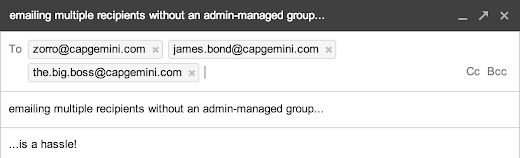
During a recent Google Apps migration project, we received several requests to create custom groups of contacts so that users could more easily email frequent collaborators. Before switching to Google Apps, users created their own private distribution lists — but this approach led to overlapping groups that quickly fell out of sync.
The problem was a perfect case for Google Apps Script. We built a great solution that gives users as much power as possible with just a quick administrator review.
Solution overview
To start the process, a user adds a specific label to a Gmail message. A script that runs on a timed trigger then generates a request to create a group for all the addresses in the message. The script writes this data to a spreadsheet that tracks group names and administrator approval.
/**
 * Retrieves all group_request threads and creates a request.
 */
function processInbox() {
  // Get threads that have the group_request label.
  var groupRequestLabel = GmailApp.getUserLabelByName(group_request);
  var threads = groupRequestLabel.getThreads(0, 10);

  // For each thread, retrieve all recipients and create a group request.
  for (var i = 0; i < threads.length; i++) {
    var firstMessage = threads[i].getMessages()[0];
    var sender = firstMessage.getFrom();
    var recipients = [];

    // Add sender.
    recipients.push(parseAddresses(sender));

    // Add recipients.
    if (threads[i].getMessages()[0].getTo()) {
      var toRecipients = parseAddresses(firstMessage.getTo());
      recipients.push(toRecipients);
    }

    // Add CCs.
    if (threads[i].getMessages()[0].getCc()){
      var ccRecipients = parseAddresses(firstMessage.getCc());
      recipients.push(ccRecipients);
    }

    // Write all recipients to a cell in the spreadsheet
    // and send emails to ask for group name and approval.
    createGroupRequestForRecipients(recipients,
        Session.getActiveUser().getEmail());

    // Remove label from this thread now that it has been processed.
    threads[i].removeLabel(groupRequestLabel);
  }
};
Handling the request
Once the request has been processed and written to the spreadsheet, the script sends the user an email that asks her to suggest a name for the group in an Apps Script web app. A second email asks the administrator to visit the web app to approve or decline the request. The results are again stored in the spreadsheet.
The spreadsheet contains a second script, which is triggered for each modification. Once the script confirms that the request has been approved, it uses the Apps Script Domain Service to create the new group.
/**
 * Creates a new group in the Google Apps cPanel with the provided name
 * and members.
 */
function createGroupWithAddresses(addresses,groupName){
  var group = GroupsManager.createGroup(groupName, groupName, groupName,
    GroupsManager.PermissionLevel.DOMAIN);
  var splitAddresses = addresses.split(,);
  for (var i = 0; i < splitAddresses.length; i++) {
    Logger.log(Adding  + splitAddresses[i]);
    group.addMember(splitAddresses[i]);
  }
};
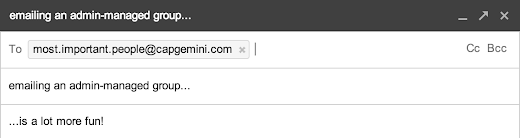
This solution provides a simple way for users to request new Google groups, without all the overhead of manually creating an admin-managed distribution list.
 | Niels Buekers profile | Twitter Niels is a Google Apps consultant at Capgemini Belgium, with interest in both the technical track and change management. He recently visited Google’s London office to participate in a Google Apps Script hackathon, which resulted in the above solution. Niels is a strong believer in cloud solutions and loves to spread the word about Google Apps. |
Interact with your Google Docs List from Apps Script
For instance, take a company whose website is hosted on Google Sites. They have a Specials page where they want to list seasonal sales depending on upcoming holidays. They store the details about the seasonal sales in plain-text files that are saved in their Google Docs List. By using the Google Docs List and and Sites services within Apps Script along with time-based triggers to run the script once per day, they can keep their Specials page updated automatically. Here’s a code snippet that demonstrates how to update the Specials page:
//The Mother’s Day sale runs from May 1 - May 7, 2011
var MOTHERS_DAY_START = new Date("May 1, 2011");
var MOTHERS_DAY_END = new Date("May 7, 2011");
//The Valentine’s Day sale runs from Feb 6 - Feb 13, 2011
var VALENTINES_DAY_START = new Date("February 6, 2011");
var VALENTINES_DAY_END = new Date("February 13, 2011");
function updateSpecials() {
var today = new Date();
var site = SitesApp.getSite("example.com", "giftshop");
// Get all the web pages in the Site
var pages = site.getWebPages();
// Loop through the web pages to find the specials page
for (var i = 0; i < pages.length; i++) {
if (pages[i].getPageName() == "specials") {
var page = pages[i];
}
}
// Set up the default wording for the specials page
var pageText = "There are no specials at this time.";
// If today’s date is within the Mother’s Day sale range
if (today >= MOTHERS_DAY_START && today <= MOTHERS_DAY_END) {
// Find the sale text that’s stored in the file mom.txt
pageText = DocsList.find("mom.txt")[0].getContentAsString();
}
// If today’s date is within the Valentine’s Day sale range
else if (today >= VALENTINES_START && today <= VALENTINES_END ) {
// Find the sale text that’s stored in the file valentines.txt
var pageText = DocsList.find("valentines.txt")[0].getContentAsString()
}
// Set the content of the specials page
page.setContent(pageText);
}

If this script is then set up to run using a trigger that calls it at the same time each day, then the Specials page will be kept automatically up-to-date.
To help you learn more, weve created a tutorial that demonstrates how to search and display information about files, create files, and read content from files.
Note that certain features of the DocsList service, such as creating files, are only available to Google Apps accounts. For complete information on interacting with your Google Docs List using Apps Script, see the DocsList Service documentation.
We look forward to seeing how you use this integration. If youd like to learn more about Apps Script and meet the Apps Script team in person, join us at the upcoming Apps Script hackathon in New York City on June 24.
Friday, February 13, 2015
How Will Google Hummingbird Change SEO

Google officially announced its latest and greatest update in its algorithm since the Caffeine Update in 2010. The search algorithm is the system that the search engine machine uses in order to sort all the information it has out in order to provide you with an adequate response to your search.
The new update is a clear indicator that Google makes quite confident attempts of becoming an integral part of our lives not only by providing us with the information we want but also offering us its intelligence which we have never imagined we needed.
Also Read: Why PageRank of my Site is not Changing? Is there will be no PageRank Update before 2014?
Also Read: The 3 Basic Things You Should Know Before Creating a Blog to Become a Successful Blogger
Do you know what the Google Hummingbird Update really is?
Google Hummingbird greatly differ from its predecessors the Panda and the Penguin updates, which used to fighting with the duplicate content and the SPAM linking, this algorithm is fully focused on better assimilation of the queries in the search engine. If we have to put this in other words, the main goal of the Hummingbird update is to make Google act a bit closer to the normal and logical human thinking.
What “new type” of search does the Hummingbird update facilitate?
The so-called “conversational search” is one of the best examples which Google has given about the “new type” of search. A more traditional search engine would probably focus on trying to find matches of the words written in the inquiry.
The Hummingbird algorithm, however, would rather focus on the beaning behind the words. It is more likely to find the actual meaning of your search, and knowing all these meanings could help Google go beyond from simply finding some pages matching your search words.
If we have to be more specific, the Hummingbird update pays more attention to each word in a search query and the meaning hidden behind it, and by this ensuring you that the search engine takes your entire inquiry into account, and not only separate words. This can be easily explained with the perspective that the pages that match the meaning behind the entire sentence are better and more informative than the ones that match just a few words.
Does this mean that SEO is dead?
Dont worry. SEO is still not dying.
In fact, what Google is trying to say is that there is nothing new or different to worry about if you are in the SEO business. The rules of the game still remain the same: make sure you provide your customers with original, unique and high-quality content. If we have to say this in other way – everything that used to be important, is still on the schedule. The Hummingbird update just gives Google the opportunity to process the information in a new and hopefully, better way.
Does this mean that my website will lose a part of its traffic?
Relax – if you havent noticed that your website has lost a part of its traffic, than you have managed to pass through the Hummingbird update unhurt. After all, the algorithm was released about a month ago, which basically means that you have had any problems with it, you would have known.
Also Read: The 5 Best Ways to Build Quality Backlinks for Your Website or Blog
Also Read: How to Find the Websites or Blogs that are Copying your Content?
Who will basically have a benefit from the new algorithm?
- The business owners who have implemented some microdata in the code of their websites.
- The websites that are present in Google+ Local and have a permanent location.
- The highly-authoritative websites that have a top ten ranking in Long Tail keyword phrases.
- The companies that are focused on internal Search Engine Optimization without using any SPAM and Keyword Staffing.
- Users.
Who will undergo through some losses thanks to the Hummingbird update?
- The companies that offer Search Engine Optimization services by one or two specific keywords and focus on their optimization without trying to accomplish comprehensive and authoritative results.
- The low-quality optimizers.
- The optimizers, who use some outdated SPAM techniques.
- The people, who do not realize that the first position in Google is important, but this is not the only indicator that an experienced SEO expert monitors for.
Author bio:
Jane loves to write on different topics about Internet. She currently works as a coordinator at http://www.perfectcleaning.org.uk/house-cleaning-acton-w3/ and has a lot of experience to share with her readers.
Saturday, January 31, 2015
SlideShare now let you import Google docs
![Reblog this post [with Zemanta]](https://lh3.googleusercontent.com/blogger_img_proxy/AEn0k_s7Icp47awNbLdTmAn0iwsmv9cTyjptB8nBX0DaHw2-3IxwEb2eusdmNOPCO26YnvcP5PQHRyk_jTP6OvqLbDs1jWwbWw1W-oDBFIBnEvjlwijQ0MrEmGmECjMJEloxFarogSTMT7fUXD6TRAAPVSRp=s0-d)
Monday, January 26, 2015
Karbonn A1 Hard Reset Remove Pattern Lock Google Lock Force Close
In this tutorial I will gonna teach you how to hard reset your Karbonn A1. This can fix the following issues that you are experiencing in your phone:
1. Power off mobile
2.Now press Home+center+power Key altogether
3. After 10-15 sec Triangle symbol will be appear
4. then Press call button for recovery menu
5. Use volume buttons to scroll option
6. Now press center button to select option

Thats it. Your phone will be back in its original state.
Thursday, January 22, 2015
Cherry MobileTitan Hard Reset Google Account Remove Pattern Lock Force Close
In this tutorial I will gonna teach you how to hard reset your Cherry Mobile Titan. This is not the Titan TV version, but you can also try this method. This can fix the following issues that you are experiencing in your phone"
3. Hang in Logo

- Press Volume Up and Power Button Simultaneously (wait for about 3 seconds)
- An android with exclamation mark will appear
- Press Home Button (middle capacitive key)
- Select wipe data/factory reset (to select press option key, left capacitive key)
- Then Reboot
Friday, January 16, 2015
Login using Google Javascript API Sample Code
In this tutorial we are utilizing Google+ Javascript API to fetch user Google+ Profile Details and Email address. It is purely OAuth2 Compatible login method and its secure.
Workflow is simple
- User Clicks on Login with Google Button on XYZ Website
- Google OAuth2 Popup opens and ask the user login to google account first.
- If Logged in, it shows the permissions that this website is requesting, then user accept this by pressing button Allow.
- Now the website receives the user information which are requested by the XYZ Website ( Login Scope )
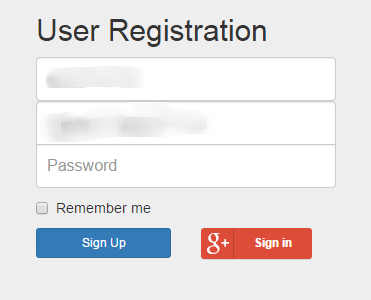
Before you begin this tutorial, you actually need to setup a Project through Google Developer Console. You can follow google docs here.
Step 1: Create Project


Now Client Key and Secret key successfully created.
Note: For javascript based login, we dont use Secret key, only Client Key is enough.
How to Google+ Javascript Login
  <script type="text/javascript">
  (function() {
    var po = document.createElement(script);
    po.type = text/javascript; po.async = true;
    po.src = https://plus.google.com/js/client:plusone.js;
    var s = document.getElementsByTagName(script)[0];
    s.parentNode.insertBefore(po, s);
  })();
  </script>
    <!-- Bootstrap core CSS -->
  <link href="http://getbootstrap.com/dist/css/bootstrap.min.css" rel="stylesheet">

    <!-- Custom styles for this template -->
  <link href="http://getbootstrap.com/examples/signin/signin.css" rel="stylesheet">

  <script src="https://ajax.googleapis.com/ajax/libs/jquery/1.11.1/jquery.min.js"></script>
  <script src="http://getbootstrap.com/dist/js/bootstrap.min.js"></script>
Complete HTML Body code for the Form and Google+ Button
   <div class="container">

      <form class="form-signin" role="form">
            <div id="status"></div>
        <h2 class="form-signin-heading">User Registration</h2>

        <label for="inputFname" class="sr-only">First Name</label>
            <input type="text" id="inputFullname" class="form-control" placeholder="First Name" required autofocus>

        <label for="inputEmail" class="sr-only">Email address</label>
        <input type="email" id="inputEmail" class="form-control" placeholder="Email address" required >

        <label for="inputPassword" class="sr-only">Password</label>
        <input type="password" id="inputPassword" class="form-control" placeholder="Password" required>

        <div class="row">
            <div class="col-md-6">
                <button class="btn btn-sm btn-primary btn-block" type="submit">Sign Up</button>
            </div>
            <div class="col-md-6">
                <button class="g-signin "
                    data-scope="https://www.googleapis.com/auth/plus.login https://www.googleapis.com/auth/userinfo.email"
                    data-requestvisibleactions="http://schemas.google.com/AddActivity"
                    data-clientId="1049178870057-usbfluijl3qtq3nijmucnsksr9gvkag4.apps.googleusercontent.com"
                    data-accesstype="offline"
                    data-callback="mycoddeSignIn"
                    data-theme="dark"
                    data-cookiepolicy="single_host_origin">
                </button>
            </div>
        </div>


      </form>

    </div> <!-- /container -->
Javascript Code for the Google+ API and Fetching User Details, Email from Google Profile
    <script type="text/javascript">
    var gpclass = (function(){

    //Defining Class Variables here
    var response = undefined;
    return {
        //Class functions / Objects

        mycoddeSignIn:function(response){
            // The user is signed in
            if (response[access_token]) {

                //Get User Info from Google Plus API
                gapi.client.load(plus,v1,this.getUserInformation);

            } else if (response[error]) {
                // There was an error, which means the user is not signed in.
                //alert(There was an error:  + authResult[error]);
            }
        },

        getUserInformation: function(){
            var request = gapi.client.plus.people.get( {userId : me} );
            request.execute( function(profile) {
                var email = profile[emails].filter(function(v) {
                    return v.type === account; // Filter out the primary email
                })[0].value;
                var fName = profile.displayName;
                $("#inputFullname").val(fName);
                $("#inputEmail").val(email);
            });
        }

    }; //End of Return
    })();

    function mycoddeSignIn(gpSignInResponse){
        gpclass.mycoddeSignIn(gpSignInResponse);
    }
    </script>
If you click on the Google+ Login Button it will show a popup like below. This means your configuration in google developer console is right.
 |
| Login using Google Popup |